Troubleshooting
Using This Guide
Unsure of technical terms? See our Glossary for simple explanations of words like "API," "port," "webhook," "VPS," and more.
Troubleshooting Guide
This guide helps you resolve common issues when using XeroLite. If you encounter problems not covered here, please contact support at [email protected].
Table of Contents
- Quick Start
- Alerts Not Being Received
- Orders Not Being Placed
- Alert Message Validation Errors
- Connection Issues with Interactive Brokers
- Order Execution Errors
- Performance Issues
- License and Activation Issues
Quick Start
Follow these questions in sequence to troubleshoot your issue:
Q1: Did TradingView send the alert signal?
If No: Check your TradingView alert setup and ensure the alert is active and configured correctly.
If Yes: Proceed to Q2.
Q2: Did the XeroLite Alert page receive the signal?
If No: Go to Alerts Not Being Received section.
If Yes: Proceed to Q3.
Q3: Is there an order record on the XeroLite Transaction page?
If No: Check one of these sections:
If Yes: Proceed to Q4.
Q4: Was the order record submitted to IB successfully? (Check Order Status on XeroLite Transaction page)
If No: Check one of these sections:
If Yes: Proceed to Q5.
Q5: Was the order accepted and filled by IB (Interactive Brokers)?
If No:
- If the order was rejected, proceed to Q6.
- If the order was not executed, go to Order Execution Errors section.
If Yes: Your order was successful! ✅
Q6: Was the order rejected in IB (Interactive Brokers)?
If Yes: Go to Order Execution Errors section for common rejection reasons and solutions.
If No: Your order may still be pending. Check TWS for order status.
Alerts Not Being Received
Symptoms
- TradingView shows alert triggered but nothing appears in XeroLite
- No entries in Incoming Alerts log
- Webhook test fails
Solutions
-
Verify Webhook URL
- Check that the webhook URL in TradingView matches XeroLite
- Ensure the URL includes the API key parameter
- Copy the webhook URL directly from XeroLite's Webhook & Settings tab
- See Webhook URL for details
-
Check IP Whitelisting
- If IP whitelisting is enabled, ensure TradingView's IP is whitelisted
- TradingView uses multiple IP addresses - you may need to whitelist a range
- Temporarily disable IP whitelisting to test if this is the issue
- See IP Whitelisting for configuration
-
Review Incoming Alerts Log
- Check for "unauthorized access" errors
- Look for API key validation failures
- Review any error messages in the log
-
Test Alert Configuration
- Use the Alert Request Builder to create a test alert
- Verify the alert message format is correct
- Test with a simple alert first before using complex strategies
-
Network and Firewall
- Ensure port 80 or 443 is accessible from the internet
- Check firewall settings on your server/VPS
- Verify XeroLite is accessible from external networks
- Test webhook URL accessibility using online tools
-
TradingView Alert Settings
- Verify the alert is active and not disabled
- Check alert frequency settings
- Ensure webhook is enabled in the alert configuration
- Verify the alert message field contains valid JSON
Orders Not Being Placed
Symptoms
- Alerts are received in XeroLite but orders don't appear in TWS
- No error messages but no orders executed
- Orders show as "pending" but never execute
Solutions
-
Check TWS Status
- Ensure TWS (Trader Workstation) is running and connected
- Verify TWS is not in "Read-Only" mode
- Check TWS connection status in the bottom right corner
- See Verify IB Connection for detailed steps
-
Verify XeroLite Connection to IB
- Check the connection status in XeroLite
- Ensure the API port matches between TWS and XeroLite (default: 7497 for paper, 7496 for live)
- Verify API access is enabled in TWS settings
- See Connect Xerolite to IB TWS
-
Check Incoming Alerts Log
- Review the Incoming Alerts tab in XeroLite
- Look for error messages or validation failures
- Verify alerts are being received and parsed correctly
-
Verify Alert Message Format
- Ensure your alert JSON is valid and complete
- Check that all required fields are present
- Use the Alert Request Builder to generate correct format
- See Alert Request Format for field requirements
-
Check Account Settings
- Verify account number is correct (if using multiple accounts)
- Ensure you have sufficient buying power for the order
- Check if account restrictions are preventing order placement
-
Market Hours
- Some order types only execute during market hours
- LIMIT orders wait for price, MARKET orders execute immediately
- Verify market is open for your instrument
Alert Message Validation Errors
Symptoms
- Alerts appear in log but show "validation error"
- "Invalid JSON format" errors
- Missing required field errors
Solutions
-
Validate JSON Format
- Ensure alert message is valid JSON
- Check for missing commas, quotes, or brackets
- Use a JSON validator tool to check syntax
- Use the Alert Request Builder to generate valid JSON
-
Check Required Fields
- Verify all mandatory fields are present:
name,symbol,currency,asset_class,exch,action,qty
- See Alert Request Format for complete field list
- Ensure field names match exactly (case-sensitive)
- Verify all mandatory fields are present:
-
Verify Field Values
- Check that field values are in correct format
- Ensure numeric values are strings (e.g.,
"10"not10) - Verify action is "BUY" or "SELL" (uppercase)
- Check that order_type matches supported types
-
Version Compatibility
- Ensure you're using the correct alert format version
- Check Release Notes for version-specific requirements
- Verify your XeroLite version supports the fields you're using
Connection Issues with Interactive Brokers
Symptoms
- XeroLite cannot connect to TWS
- Connection status shows "Disconnected"
- API connection errors
Solutions
-
Enable TWS API Access
- Open TWS Settings → API → Settings
- Enable "Enable ActiveX and Socket Clients"
- Set "Socket port" (default: 7497 for paper, 7496 for live)
- Ensure "Read-Only API" is unchecked if you want to place orders
- See Configure IB TWS for API Access
-
Verify TWS is Running
- Ensure TWS is launched and logged in
- Check that TWS is not frozen or crashed
- Restart TWS if connection issues persist
-
Check API Port Settings
- Verify the port in XeroLite matches TWS API port
- Default ports: 7497 (paper trading), 7496 (live trading)
- Ensure no other applications are using the same port
-
Firewall and Security Settings
- Allow TWS through Windows/Mac firewall
- Check if antivirus is blocking the connection
- Ensure "Allow connections from localhost only" is unchecked in TWS API settings (if connecting from remote server)
-
API Precautions
- Check TWS API Precautions settings
- Ensure "Bypass Order Precautions for API Orders" is enabled if needed
- Review other API precaution settings that might block orders
-
Network Connectivity
- If XeroLite is on a remote server, ensure network connectivity
- Check if VPN or proxy is interfering
- Verify localhost/127.0.0.1 connectivity if running locally
Order Execution Errors
Symptoms
- Orders fail with specific error messages
- "Price does not conform to minimum price variation" error
- Orders rejected by IB
Viewing rejection details: You can view specific rejection details by hovering over the exclamation icon (!) on rejected orders in the Transactions page.
Example
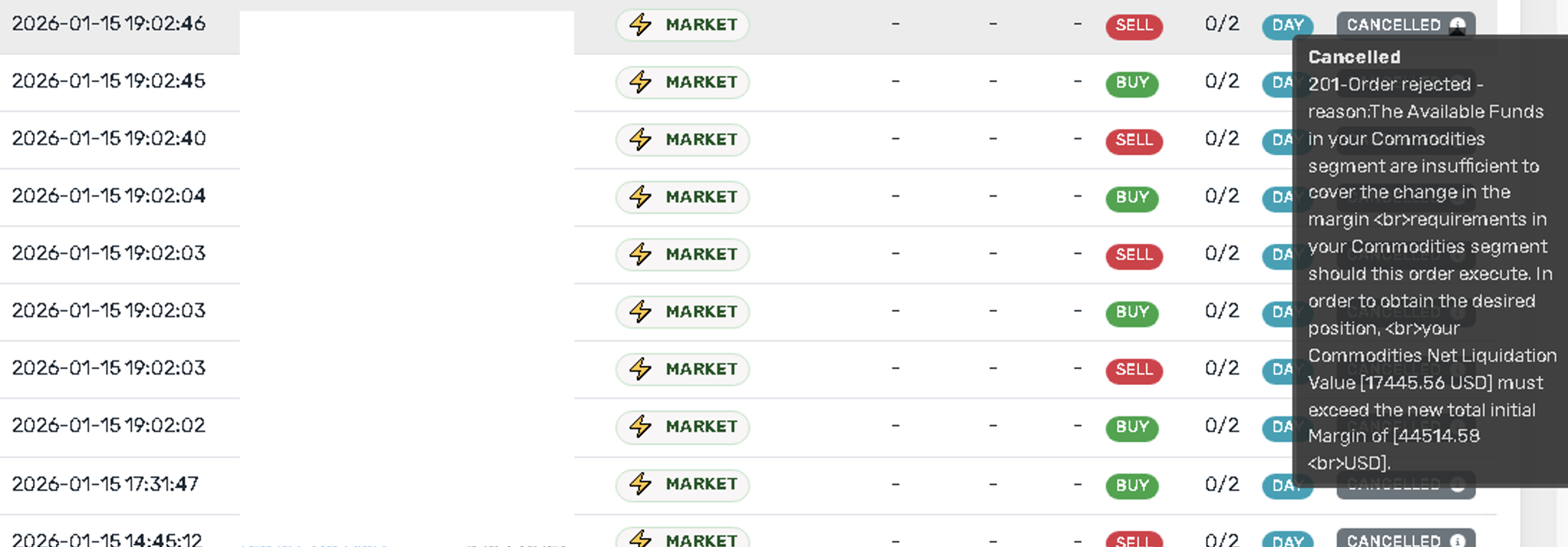
Solutions
-
Price Rounding Issues
- XeroLite automatically rounds prices based on IB market rules
- Ensure prices are within valid increments for your instrument
- See Price Rounding Rules for details
- Use the Alert Request Builder which handles rounding automatically
-
Invalid Order Parameters
- Verify symbol format matches IB requirements
- Check that asset class and exchange are correct
- Ensure quantity is valid (not zero, within position limits)
- Verify order type is supported (MARKET, LIMIT, TRAIL)
-
Account Restrictions
- Check if your account has trading permissions for the instrument
- Verify you have sufficient buying power
- Ensure account is not restricted or on margin call
- Check if account type supports the order type (e.g., some accounts don't support TRAIL orders)
-
Market Data Requirements
- Some order types require real-time market data subscriptions
- Verify you have market data for the instrument
- Check if delayed data is causing issues
-
Not Enough Margin
- The account does not meet the margin requirements for the order
- Verify you have sufficient buying power
- Check account balance and margin requirements
- Consider reducing order size or adding funds to the account
-
Physical Delivery Issues
- The order does not comply with IB's handling rules for derivatives resulting in physical delivery
- This typically refers to instruments that may result in physical delivery or have special settlement requirements
- Check account settings and requirements with Interactive Brokers
- Ensure future trades involve assets that meet these requirements
Performance Issues
Symptoms
- Slow order execution
- Delayed alert processing
- System lag or freezing
Solutions
-
System Resources
- Ensure adequate CPU and memory available
- Close unnecessary applications
- Check system resource usage
-
Network Latency
- Verify stable internet connection
- Check network latency to IB servers
- Consider using a VPS closer to IB data centers
-
TWS Performance
- Ensure TWS is not overloaded with too many charts/indicators
- Close unnecessary TWS windows
- Restart TWS periodically if running for extended periods
-
XeroLite Configuration
- Review alert processing settings
- Check if too many concurrent alerts are causing issues
- Monitor Incoming Alerts log for bottlenecks
License and Activation Issues
Symptoms
- "License expired" errors
- Cannot activate license
- License key not accepted
Solutions
-
Verify License Key
- Ensure license key is entered correctly
- Check for extra spaces or characters
- Copy license key directly from email/purchase confirmation
- If you need a new license, visit XeroLite Downloads & Resources
-
Check License Status
- Verify license is not expired
- Ensure license is valid for your XeroLite version
- Contact support if license appears invalid
-
Network Connectivity
- Ensure XeroLite can reach license validation servers
- Check firewall isn't blocking license validation
- Verify internet connection is active
Need more help? Contact support at [email protected]
See also:
- Verify IB Connection for how to verify your connection
- Test Order Execution for safe testing procedures
- Alert Request Builder for building valid alert messages
- How XeroLite Processes Alerts for understanding alert processing
- FAQ for more common questions
Last Updated: December 2025