5. Configure IB TWS for API Access
Before XeroLite can connect to Interactive Brokers, you need to configure TWS (Trader Workstation) or IB Gateway to allow API access. This section guides you through the configuration process.
Prerequisites
- XeroLite CE instance accessed – Logged into your XeroLite CE web interface (see Getting Started)
- TWS or IB Gateway pre-installed – Already installed in your XeroLite CE instance (see System Requirements)
- Interactive Brokers account – Paper or Live account credentials ready
TWS vs IB Gateway
- TWS: Full trading platform with charts and tools. Use if you need visual interface.
- IB Gateway: Lightweight API-only connection. Recommended for automated trading.
Both applications support the same API configuration steps.
5.1: Access TWS Settings in XeroLite CE
In XeroLite CE, TWS/Gateway is pre-installed and accessible through the web interface:
- Log in to your XeroLite CE instance via web browser
- Access TWS/Gateway: Navigate to the TWS/Gateway interface through the XeroLite CE web interface
- Log in to TWS/Gateway: Enter your Interactive Brokers username and password
- Access Global Configuration:
- Click on Edit in the TWS/Gateway interface
- Select Global Configuration from the dropdown menu
- Navigate to API Section: The Global Configuration window will open. Look for the API section in the left sidebar
5.2: Enable API Access
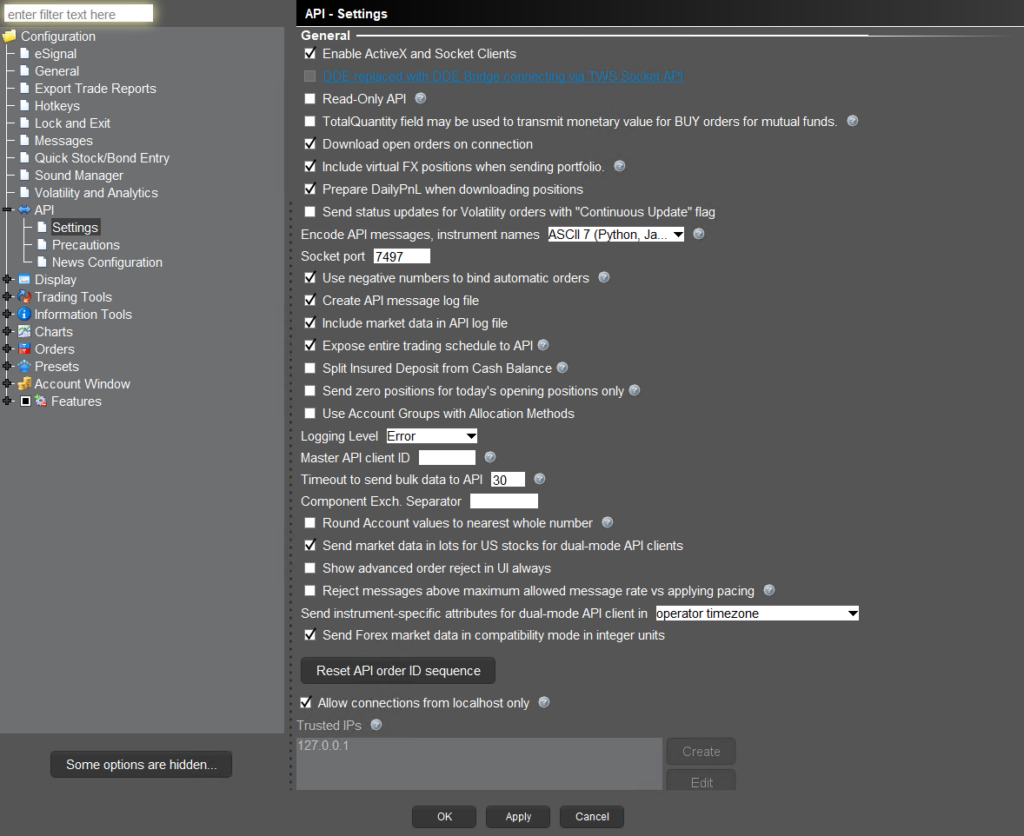
- Select API → Settings: Click on API in the left sidebar, then select Settings
- Enable ActiveX and Socket Clients:
- Check the box for Enable ActiveX and Socket Clients
- This allows external applications (like XeroLite) to connect via the API
- Configure Socket Port:
- Set Socket port to
7497(default for paper trading) - For live accounts, you may use port
7496or7497depending on your configuration
- Set Socket port to
- Disable Read-Only Mode:
- Ensure Read-Only API is unchecked
- Read-only mode prevents order execution, which is required for XeroLite
5.3: Allow Local Connections
-
Configure Trusted IPs (if applicable):
- Some TWS versions have a "Trusted IPs" section
- Add
127.0.0.1(localhost) to allow local connections - This ensures XeroLite running on the same machine can connect
-
Verify Connection Settings:
- Ensure the API is configured to accept connections from localhost
- Default settings typically allow local connections automatically
5.4: Save Settings
-
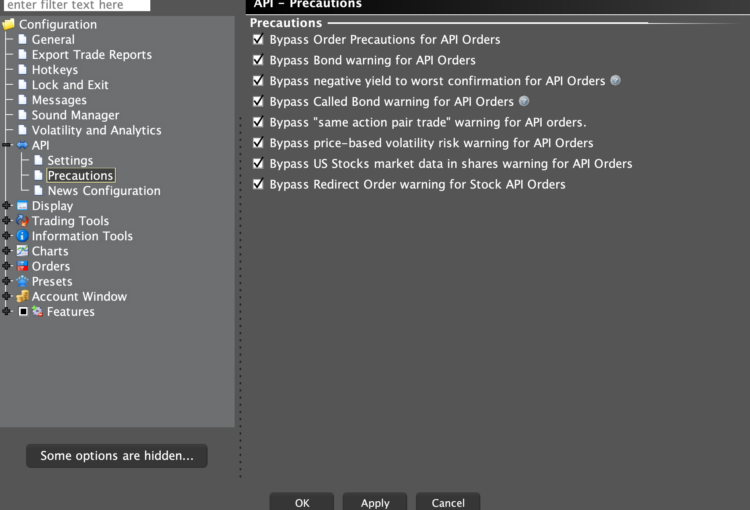
Configure API Precautions:
- In the same Global Configuration window, go to API → Precautions
- Enable all "Bypass Order Precautions for API Orders" options to ensure smooth order execution
Which Bypass Options to Enable?
- Basic Trading: Enable the main "Bypass Order Precautions for API Orders"
- Full Automation: Enable all options for complete automated trading functionality
-
Apply Changes: Click Apply or OK to save your API settings
-
Restart TWS/IB Gateway:
- Important: You can restart TWS or IB Gateway for API settings to take effect, if it is not taking effect
- Close the application completely and relaunch it
- Log back in with your credentials
-
Verify Settings Persisted:
- After restart, go back to Edit → Global Configuration → API → Settings
- Confirm your settings are still configured correctly
- Verify API Precautions settings are still enabled
Important Notes
- API settings must be saved and TWS/IB Gateway must be restarted for changes to take effect
- Keep TWS/IB Gateway running while using XeroLite
- The API port (7497) must not be blocked by your firewall
- API Precautions must be enabled for orders to execute properly
Troubleshooting
API Settings Not Saving
- Restart TWS: Restart TWS/IB Gateway after changing API settings
- Check Permissions: Ensure you have write permissions for TWS configuration
- Verify Settings: Go back to API settings and confirm they persisted
Orders Not Executing
- Check API Precautions: Ensure "Bypass Order Precautions for API Orders" is enabled
- Verify Read-Only Mode: Ensure Read-Only API is unchecked
- Check Port: Verify port 7497 is correct and not blocked
Next Steps
After configuring API access, proceed to:
- Connect Xerolite to IB TWS – Establish the connection between XeroLite and IB