IP Whitelisting
IP Whitelisting for Xerolite Webhook
Why Whitelisting?
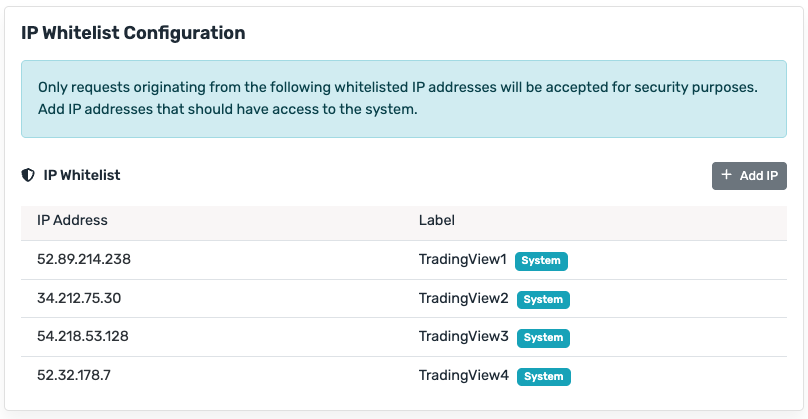
For security reasons, Xerolite Webhook URL only accepts requests from specific approved (whitelisted) IP addresses.
Currently, only TradingView's IP addresses are allowed by default.
Testing from Another Device or Signal Provider
If you want Xerolite to receive signals from another signal provider (similar to TradingView), or simply want to test the signal from another device (such as another computer, phone, or server), you'll need to add that device's or provider's IP address to the whitelist.
This ensures that only approved sources can send trading signals to your Xerolite Webhook for security and reliability.
Steps to Add Your Device's IP
1. Find Your IP Address
Go to WhatIsMyIP.com to easily find your device's IP address.
2. Update the Configuration
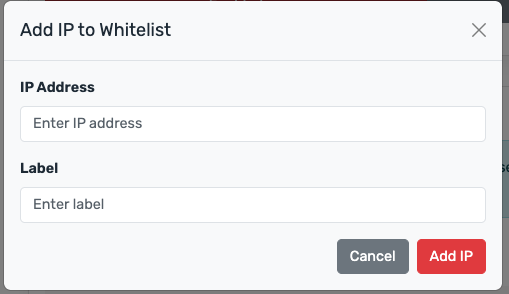
In IP whitelisting configuration, click on + Add IP button
3. Enter IP Address & Label
Just enter your IP address and Label (e.g Home, Office)
4. Unauthorized Request
The alert request sent from a device without whitelisting the IP will be treated as Unauthorized and will not be processed.
Need Help?
Contact support at [email protected] if you need help