How Xerolite Processes TradingView Alerts
Xerolite acts as a secure, real-time bridge between your TradingView alerts and your broker (e.g., Interactive Brokers). This guide explains how incoming alerts are processed—from validation to execution.
📬 Step-by-Step Alert Processing
1. Alert Received
Xerolite receives the webhook alert from TradingView.
2. API Key Validation
Alerts with missing or incorrect API keys are rejected and not logged.
3. IP Whitelist Check
If the sender's IP is not whitelisted, the alert is logged but marked as unauthorized access.
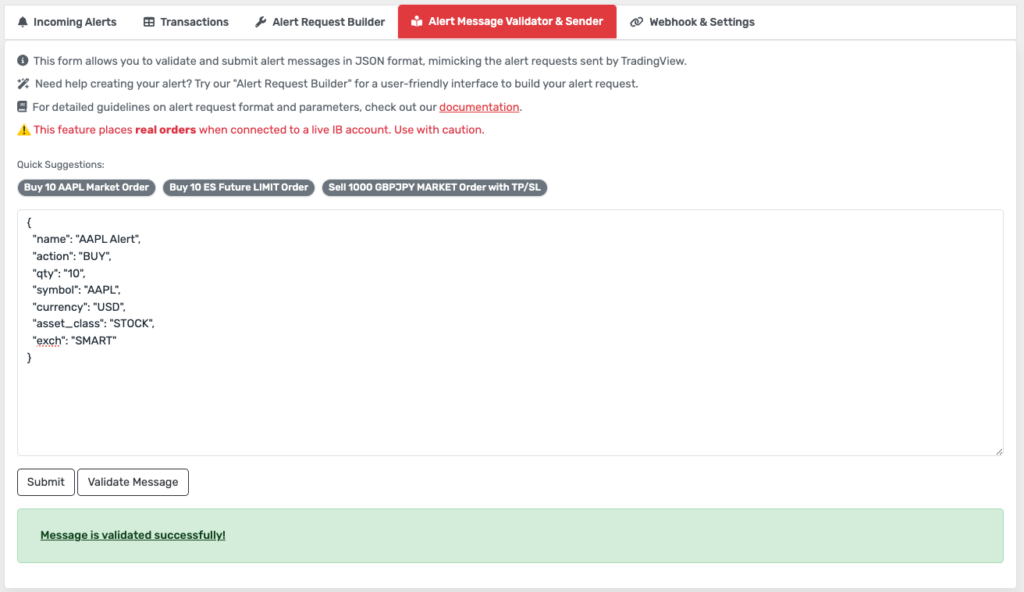
4. Message Validation
- Required fields:
action,symbol,qty,currency,asset_class,exch - Malformed or incomplete messages are logged with a
validation error. - ✅ Use the Alert Request Builder to build valid JSON and test with the Alert Message Validator & Sender.
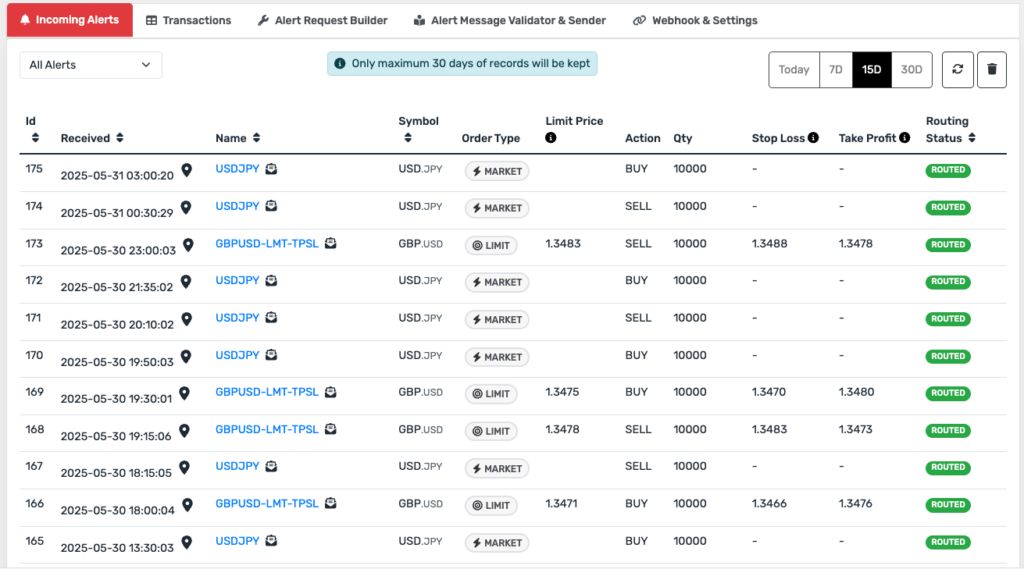
6. Log Incoming Alert
Valid alerts (excluding those with invalid API keys) are shown in the Incoming Alerts tab for diagnostics.
7. Create & Send Order
- The alert is converted into an Interactive Brokers order.
- The order is sent to TWS (Trader Workstation).
- If TWS is disconnected, no order is placed, and the alert is logged with a
TWS disconnectederror.
8. Track Transactions
Each valid order is recorded in the Transactions tab, including execution feedback.
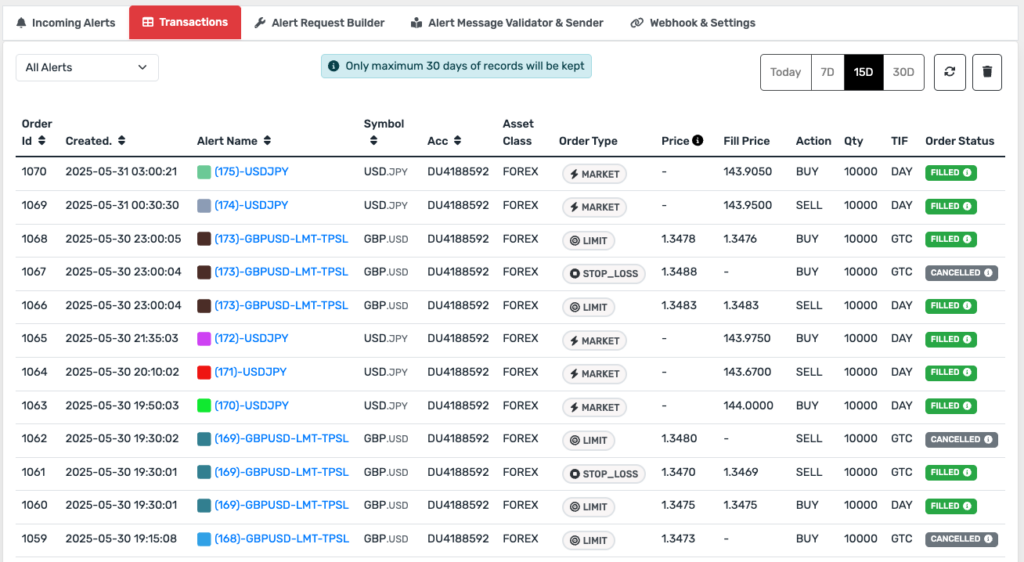
9. Multi-Part Orders (TP/SL)
If the alert includes Take Profit and Stop Loss, Xerolite can create multiple transactions (entry, TP, SL).
🧾 Summary: Alert Logging Status
| Condition | Logged in "Incoming Alerts" | Status |
|---|---|---|
| ✅ All checks passed | Yes | Success / Routed |
| ❌ Invalid API key | No | Rejected |
| ❌ IP not whitelisted | Yes | Error: Unauthorized |
| ❌ License expired | Yes | Error: Expired License |
| ❌ Invalid message format | Yes | Error: Invalid Format |
| ❌ TWS not connected | Yes | Error: TWS Offline |
💡 Pro Tip: Always test your alert JSON using the Smart Alert Builder before going live. This helps avoid malformed messages and missed trades.