Manual Alerts Guide (Detailed)
Note: This is a detailed reference guide for manual alerts. For a quick start, see Create TradingView Alert.
Creating Alerts in TradingView (Without Pine Script)
📝 Overview
This guide shows how to create TradingView alerts without writing any Pine Script. These alerts use TradingView's built-in UI and work perfectly with Xerolite, as long as you provide a properly formatted JSON message.
If you're just getting started or don't know coding, this is the simplest way to automate your trading with Xerolite.
⚙️ Step-by-Step: Creating Alerts Without Pine Script
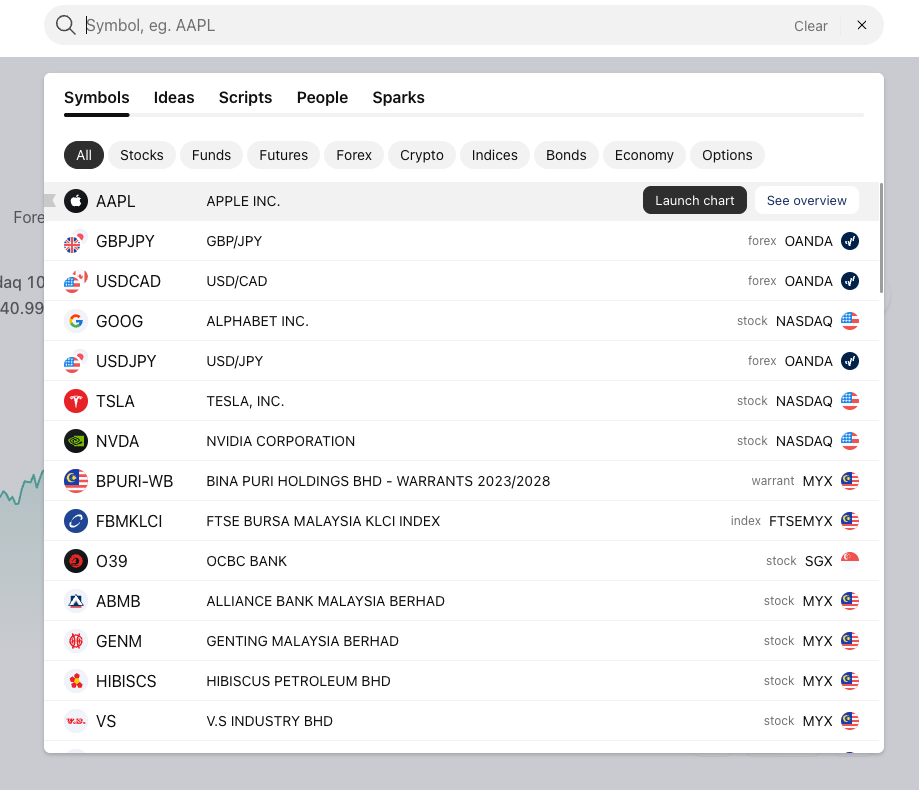
Step 1: Open the TradingView Chart
Search for your symbol (e.g. AAPL) and open the chart view.
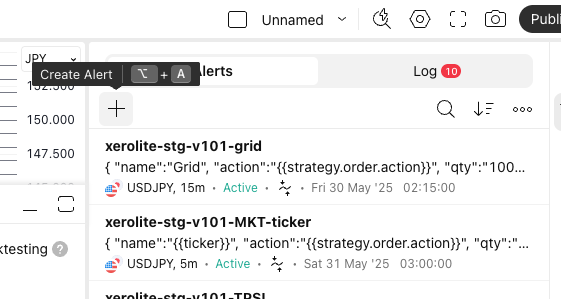
Step 2: Click on the Alert Button
Click the 🔔 icon at the top of the screen or right-click on the chart and choose "Add Alert".
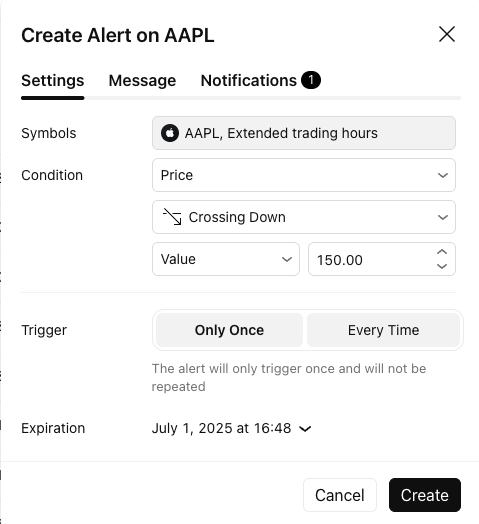
Step 3: Set Alert Conditions
Choose your trigger condition (e.g., AAPL crosses 150). You can use price, moving average, or any supported indicator.
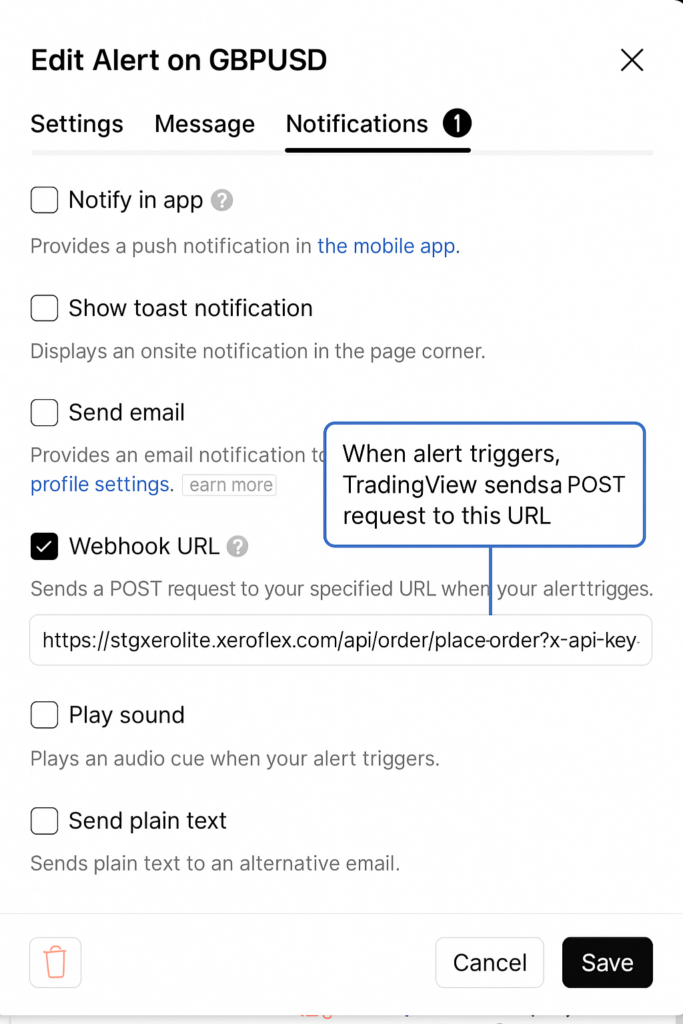
Step 4: Set Alert Actions
- ✅ Enable Webhook URL
- Paste your Xerolite webhook URL for your instance
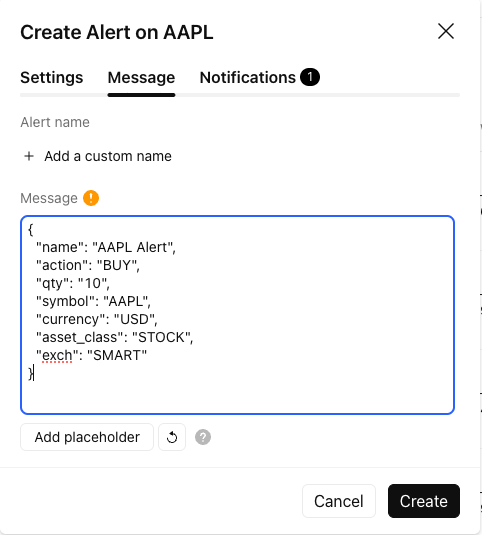
- Paste the alert message in JSON format (see below)
🔄 Example Alert Messages (for Xerolite)
✅ Buy Alert:
{
  "name" : "AAPL Alert",
  "action": "BUY",
  "symbol": "AAPL",
  "qty": "10",
  "currency": "USD",
  "asset_class": "STOCK",
  "exch": "SMART"
}
✅ Sell Alert:
{
  "name" : "AAPL Alert",
  "action": "SELL",
  "symbol": "AAPL",
  "qty": "10",
  "currency": "USD",
  "asset_class": "STOCK",
  "exch": "SMART"
}
💡 Important: Make sure the JSON is valid and complete. Incorrect messages may cause Xerolite to ignore the alert.
🛠️ Using the Xerolite Smart Alert Builder
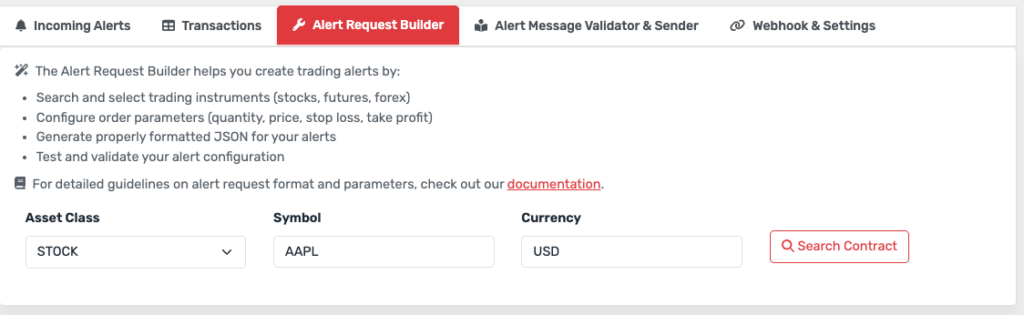
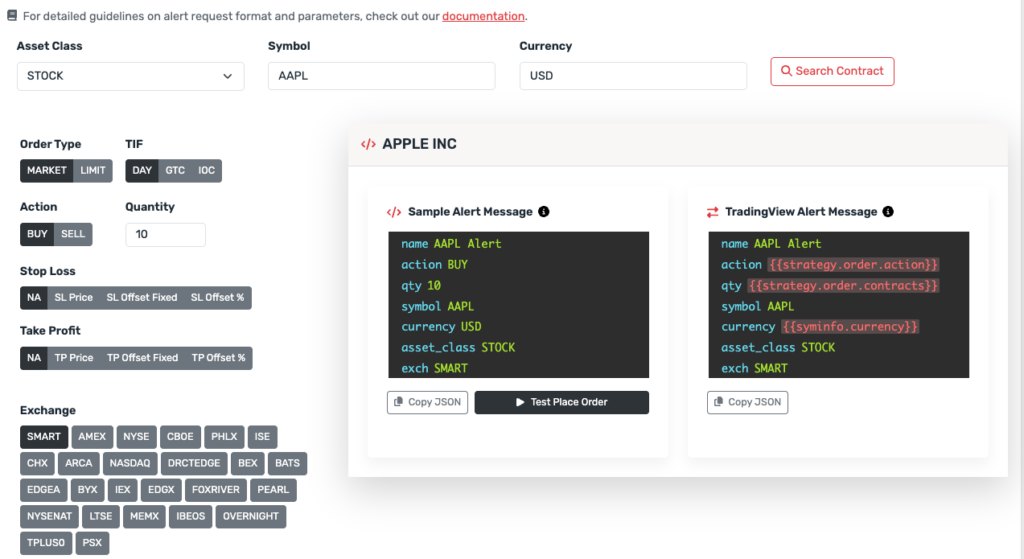
To avoid formatting errors and save time, use the Xerolite Smart Alert Builder:
- Go to your Xerolite instance (or go to xerolite demo site:
https://stgxerolite.xeroflex.com/) - Go to Alert Request Builder
- Fill in fields: Asset Class, Symbol & Currency
- Customize your order (e.g., order type, TIF, action, quantity, SL/TP, exchange)
- Copy the generated JSON
- Paste it into the TradingView alert message box
📌 Summary
- You can create alerts via TradingView's UI without writing code
- Use the Webhook URL and JSON message format required by Xerolite
- Use the Smart Alert Builder to ensure your JSON is valid
- Xerolite will receive and execute the order based on your alert
🔗 Related Articles
- Create TradingView Alert – Main guide with both methods
- Alert Methods: Manual vs Pine Script – Comparison guide
- Pine Script Alerts Guide – Detailed Pine Script guide
- How XeroLite Processes TradingView Alerts – Technical details