10. Create TradingView Alert
This guide shows you how to create TradingView alerts that send signals to XeroLite for automated order execution. You can create alerts with or without Pine Script—choose the method that fits your needs.
Prerequisites
- TradingView chart prepared with strategy or indicator (see Prepare TradingView for Alerts)
- XeroLite webhook URL (see Webhook URL)
- Alert message format ready (see Alert Request Builder)
Choose Your Alert Method
TradingView supports two main ways to create alerts:
| Method | Best For | Coding Required |
|---|---|---|
| Manual Alerts | Simple price-based alerts, beginners | ❌ No |
| Pine Script Alerts | Advanced strategies, dynamic values | ✅ Yes |
👉 Not sure which to use? See Alert Methods: Manual vs Pine Script for a detailed comparison.
Method 1: Create Manual Alert (No Coding)
Perfect for simple price-based alerts or if you're new to TradingView automation.
Step 1: Open Alert Creation
- Access Alert Dialog:
- Click on the 🔔 Alert icon at the top of the TradingView chart
- Or right-click on the chart and select Add Alert
- Or click the + icon in the top right corner and select Alert
- Alert Dialog Opens:
- The alert creation dialog will appear
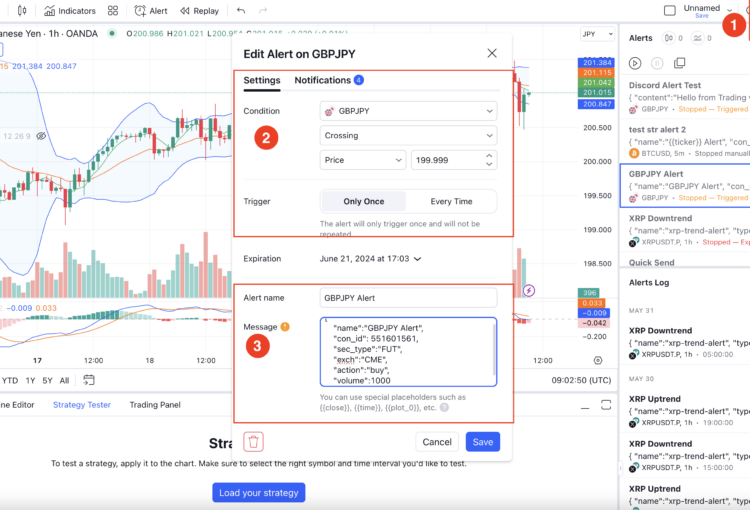
Step 2: Configure Alert Condition
- Select Condition Type:
- Price Alert: Triggered when price crosses a level (e.g., "AAPL crosses above 150")
- Indicator Alert: Triggered by indicator conditions (e.g., "RSI crosses above 70")
- Set Trigger Conditions:
- For price alerts: Set price level and condition (crosses above, crosses below, etc.)
- For indicator alerts: Select indicator and condition
- Configure Frequency:
- Once Per Bar Close: Alert fires once when condition is met
- Once Per Bar: Alert fires on each bar where condition is true
Step 3: Enable Webhook
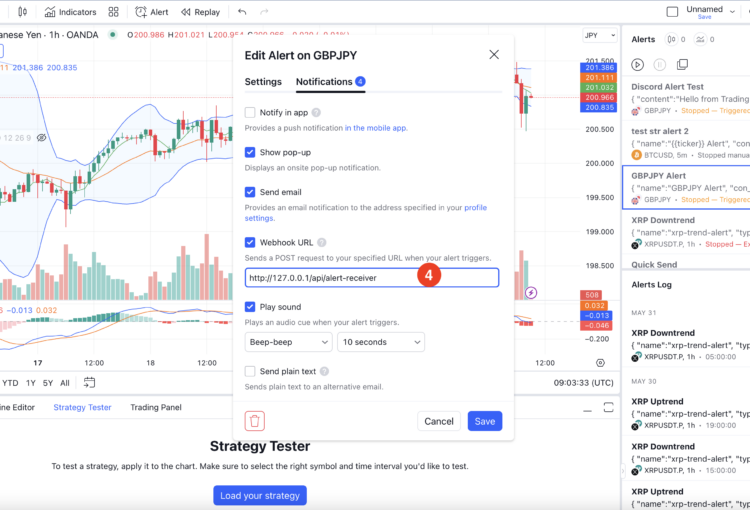
- Find Webhook Section:
- Scroll down in the alert dialog to find Webhook URL section
- This is typically under "Alert Actions" or "Notifications"
- Enable Webhook:
- Check the box for Webhook URL or Webhook
- Get Your Webhook URL:
- In XeroLite, navigate to Webhook & Settings tab
- Copy your webhook URL (format:
https://<your-ip>/api/order/place-order?x-api-key=<your-api-key>) - See Webhook URL for details
- Paste Webhook URL:
- Paste your XeroLite webhook URL into the Webhook URL field in TradingView
Step 4: Paste Alert Message
- Prepare Alert Message:
- Use XeroLite's Alert Request Builder to generate a valid alert message
- Or manually create JSON following the Alert Request Format
- Find Message Field:
- In the alert dialog, look for Message or Alert Message field
- Paste Alert Message:
- Copy your prepared alert message (JSON format)
- Paste it into the Message field in TradingView
Example Alert Message (Manual Alert)
{
  "name": "AAPL_LONG_001",
  "symbol": "AAPL",
  "currency": "USD",
  "asset_class": "STOCK",
  "exch": "SMART",
  "action": "BUY",
  "qty": "10",
  "order_type": "MARKET"
}
💡 Tip: Use the Alert Request Builder to avoid JSON formatting errors.
Step 5: Save Alert
- Review Alert Configuration:
- Double-check all settings
- Name Your Alert (optional):
- Give your alert a descriptive name
- Save Alert:
- Click Create or Save button
- The alert will be created and activated
Method 2: Create Pine Script Alert (With Coding)
Best for advanced strategies that need dynamic values or complex logic.
Step 1: Create or Load Pine Script Strategy
- Open Pine Editor:
- Click on Pine Editor at the bottom of TradingView
- Or use the "Pine Editor" button in the toolbar
- Load or Create Strategy:
- Load an existing Pine Script strategy
- Or create a new strategy using Pine Script
- Add Strategy to Chart:
- Click Add to Chart in the Pine Editor
- The strategy will appear on your chart
Step 2: Choose Pine Script Alert Method
You have two options for Pine Script alerts:
Option A: Use alert() Function (Hardcoded Values)
Best for simple strategies with fixed values.
//@version=5
strategy("MA Crossover", overlay=true)
fast = ta.sma(close, 10)
slow = ta.sma(close, 30)

longCond = ta.crossover(fast, slow)
shortCond = ta.crossunder(fast, slow)

if (longCond)
    alert('{"action":"BUY","symbol":"AAPL","qty":"10","currency":"USD","asset_class":"STOCK","exch":"SMART"}', alert.freq_once_per_bar)

if (shortCond)
    alert('{"action":"SELL","symbol":"AAPL","qty":"10","currency":"USD","asset_class":"STOCK","exch":"SMART"}', alert.freq_once_per_bar)
Steps:
- Add this script to your chart
- Create alert with "Any alert() function call" condition
- Paste your XeroLite webhook URL
- No message field needed (message is in the script)
❌ Limitation: All values are fixed in code. No placeholders supported.
Option B: Use strategy.entry() + TradingView Placeholders (Dynamic Values)
Best for flexible strategies that need dynamic quantities, prices, etc.
//@version=5
strategy("MA Crossover Strategy", overlay=true)
fast = ta.sma(close, 10)
slow = ta.sma(close, 30)

longCond = ta.crossover(fast, slow)
shortCond = ta.crossunder(fast, slow)

if (longCond)
    strategy.entry("Buy", strategy.long, qty=10)

if (shortCond)
    strategy.entry("Sell", strategy.short, qty=10)
Steps:
- Add this script to your chart
- Click 🔔 Alert → Select "Strategy" as condition
- Setup your XeroLite webhook URL
- Paste this JSON message with placeholders:
{
  "name": "Strategy Alert",
  "action": "{{strategy.order.action}}",
  "qty": "{{strategy.order.contracts}}",
  "symbol": "AAPL",
  "currency": "{{syminfo.currency}}",
  "asset_class": "STOCK",
  "exch": "SMART",
  "order_type": "LIMIT",
  "price": "{{strategy.order.price}}"
}
✅ Advantage: Placeholders let you insert live values from your strategy (action, quantity, price, etc.)
Step 3: Enable Webhook and Paste Message
- Enable Webhook:
- Check the box for Webhook URL
- Paste Webhook URL:
- Paste your XeroLite webhook URL
- Paste Alert Message (for Option B only):
- If using
strategy.entry()method, paste the JSON message with placeholders - If using
alert()method, skip this step (message is in code)
- If using
Step 4: Save Alert
- Review Configuration:
- Verify strategy is applied correctly
- Check webhook URL and message (if applicable)
- Save Alert:
- Click Create or Save
Using TradingView Placeholders
For dynamic values in your alert messages, you can use TradingView placeholders:
| Placeholder | Description | Example |
|---|---|---|
{{strategy.order.action}} | Order action (BUY/SELL) | "BUY" or "SELL" |
{{strategy.order.contracts}} | Order quantity | "10" |
{{strategy.order.price}} | Order price | "150.00" |
{{syminfo.currency}} | Symbol currency | "USD" |
{{close}} | Current close price | "150.25" |
💡 Important: Avoid using {{ticker}} as it may not match Interactive Brokers' symbol format. Use fixed symbols and define symbol, asset_class, and exch manually.
Alert Message Validation
Before saving, verify:
- ✅ JSON is valid (no syntax errors)
- ✅ All required fields are present
- ✅ Field values match expected format
- ✅ Symbol matches the chart symbol (or use placeholder)
- ✅ Webhook URL is correct and complete
💡 Use the Alert Request Builder to generate valid JSON and test your alerts.
Alert Management
Edit Alert
- Click on the alert in your alerts list
- Modify any settings (condition, message, webhook URL)
- Save changes
Enable/Disable Alert
- Toggle alert on/off from the alerts list
- Disabled alerts won't trigger but remain saved
Delete Alert
- Remove alerts you no longer need
- Deleted alerts cannot be recovered
Next Steps
After creating your alert, proceed to:
- Connect & Test TradingView Alerts – Test and verify alerts are working
Related Guides
- Alert Methods: Manual vs Pine Script – Detailed comparison
- Alert Request Builder – Tool to build valid alert messages
- Alert Request Format – Complete field reference